 Refreshify
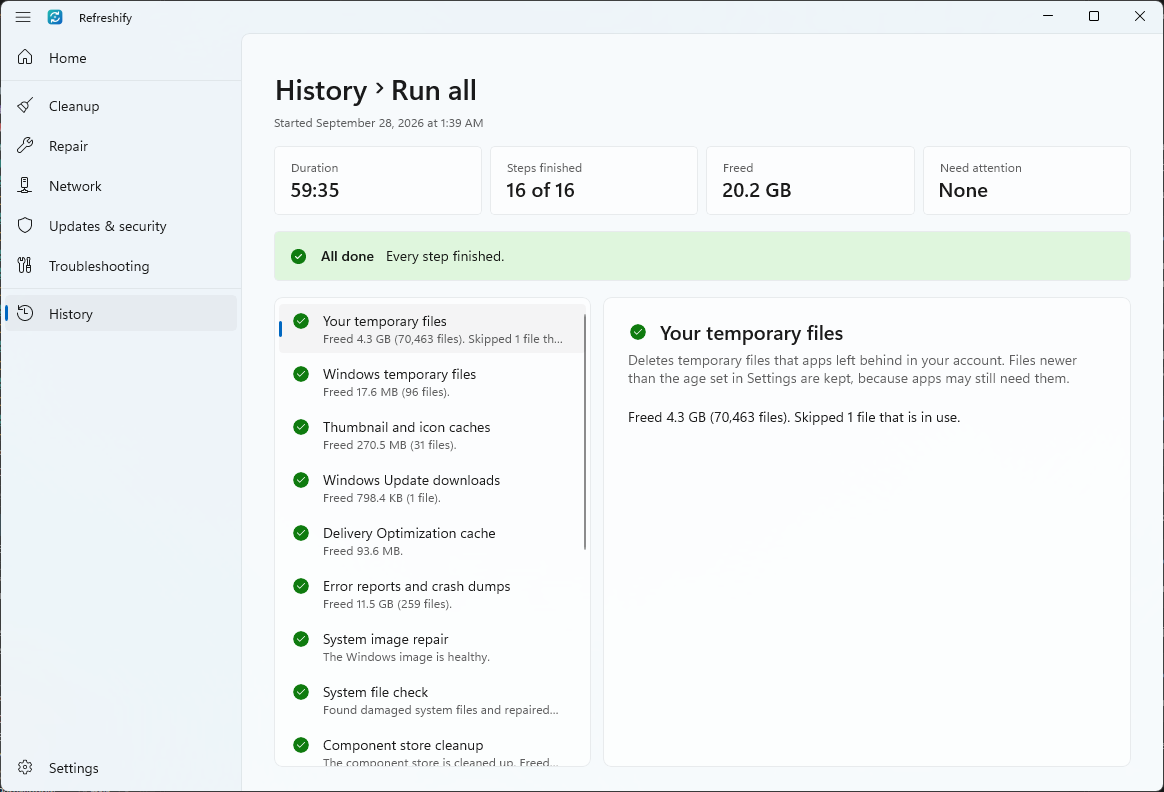
Run all, in a safe order
Cleanup, Repair, Network, and Updates and security, in an order that avoids known failures. Or run one category, or a single tool.
Refreshify cleans up, repairs and updates your PC with the tools Windows already has, in one native app, without a single terminal window.
Free and open source
MIT License. Windows 11, or Windows 10 1809+, x64.
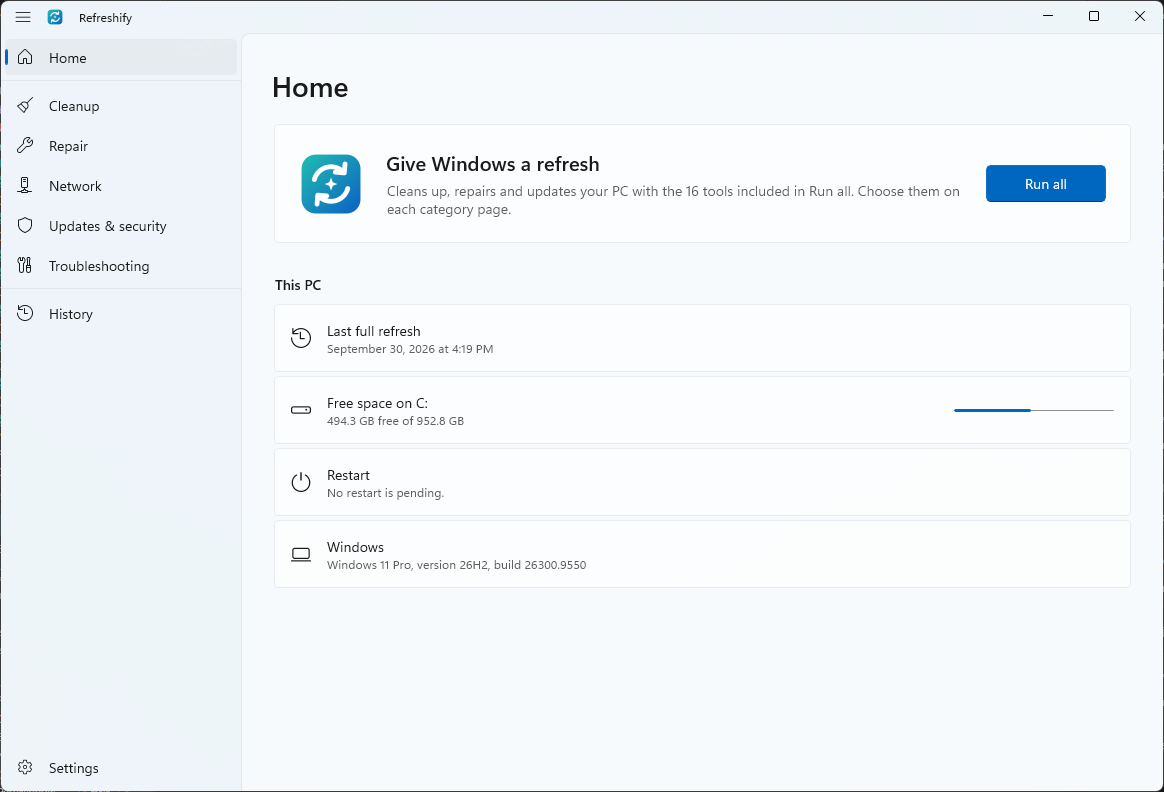
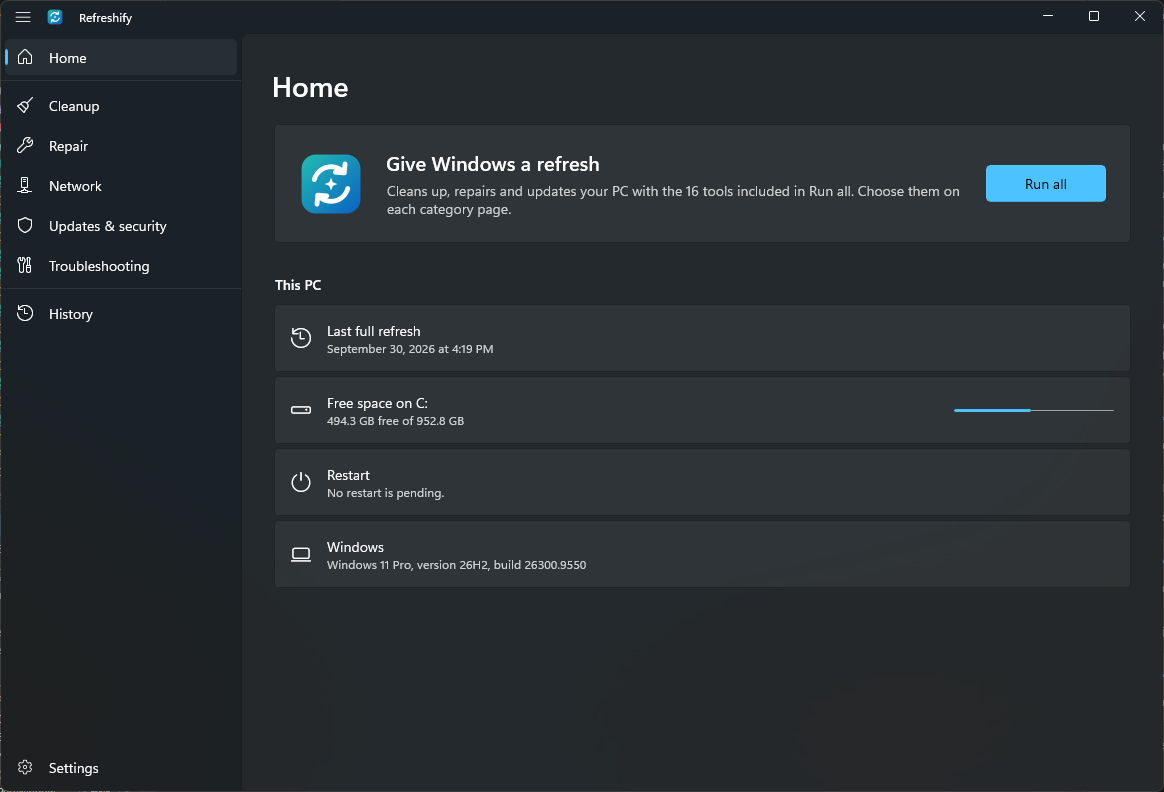
DISM, SFC, chkdsk, Windows Update, Defender and winget fix most of what slows Windows down, if you know which to run, in which order, and what their output means. Refreshify knows.
Cleanup, Repair, Network, and Updates and security, in an order that avoids known failures. Or run one category, or a single tool.
Every tool says what it does, and troubleshooting tools say when to use them. You see each step's progress, duration and findings, never a terminal.
Refreshify lists what a run will do before it starts, and creates a System Restore point before anything changes.
Recognizes 15 common failures, such as a damaged Windows Update cache, explains them and fixes the ones it safely can. Bigger fixes ask first.
Looks at free space, drive health, battery wear, a restart that is waiting, uptime, virus protection, the last Windows update and activation, says what it found and what to do, and opens the tool that helps. Nothing is changed.
Scans your files or a drive and shows the biggest folders and files, largest first, each with its size and share. Open a folder, see the 100 largest files, or open a place in File Explorer. Nothing is deleted.
Turns a failed step into a report to paste into an AI assistant, with your user name, computer name and profile folder hidden by default.
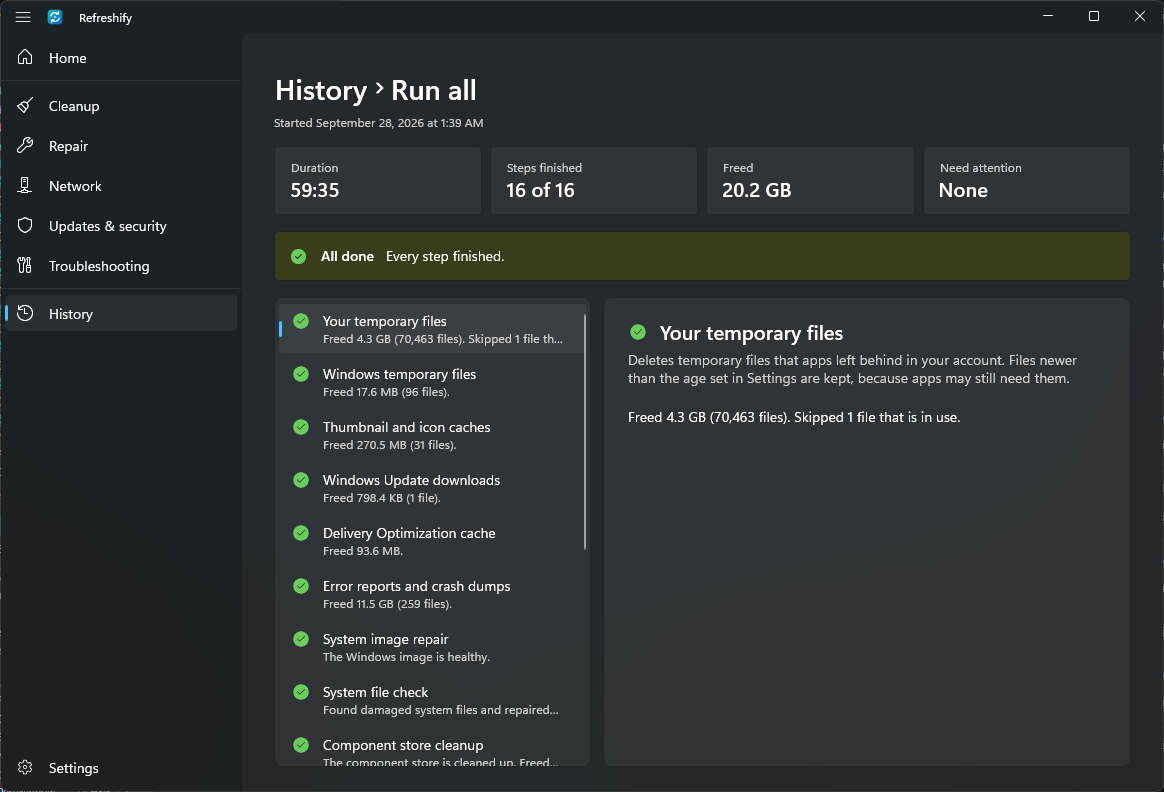
The last 50 runs, with how long they took and the space they freed, and an optional reminder every 1, 2, 3 or 6 months.
Checks GitHub for a newer release at most once a day, shows what changed in plain words, verifies the installer's checksum before installing it, and shows what changed in the new version after you update.
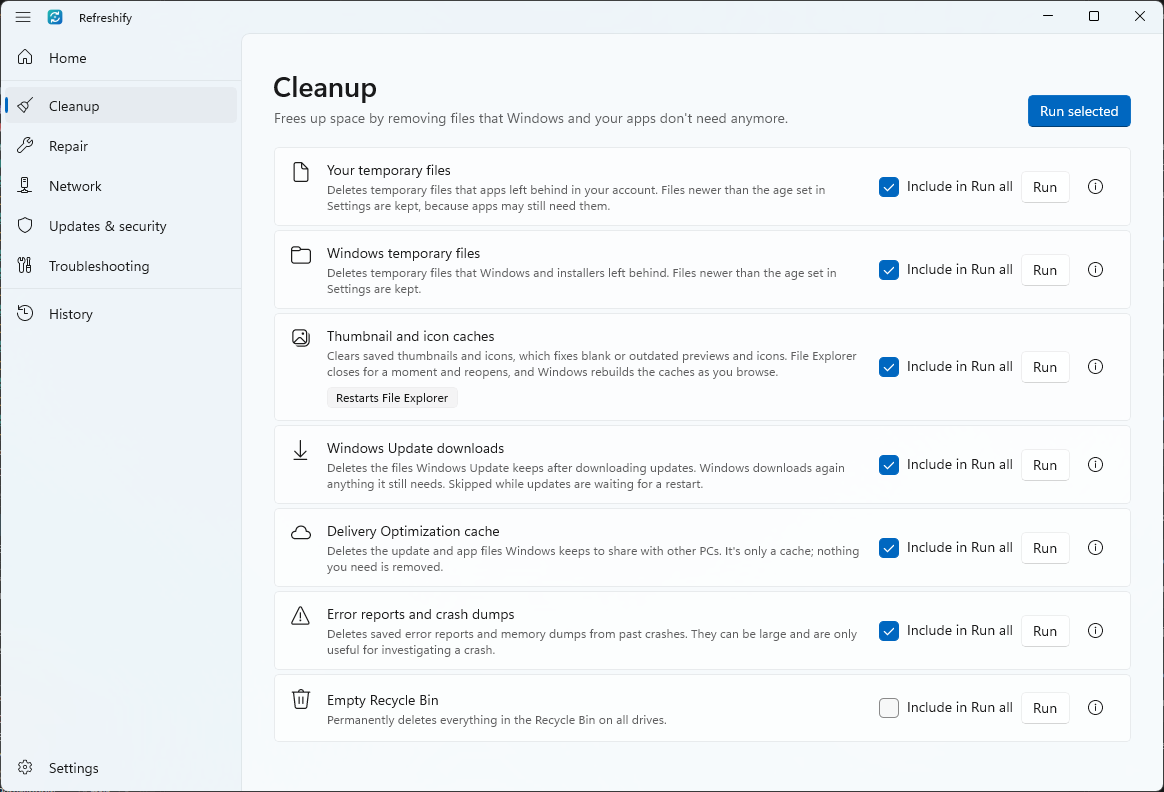
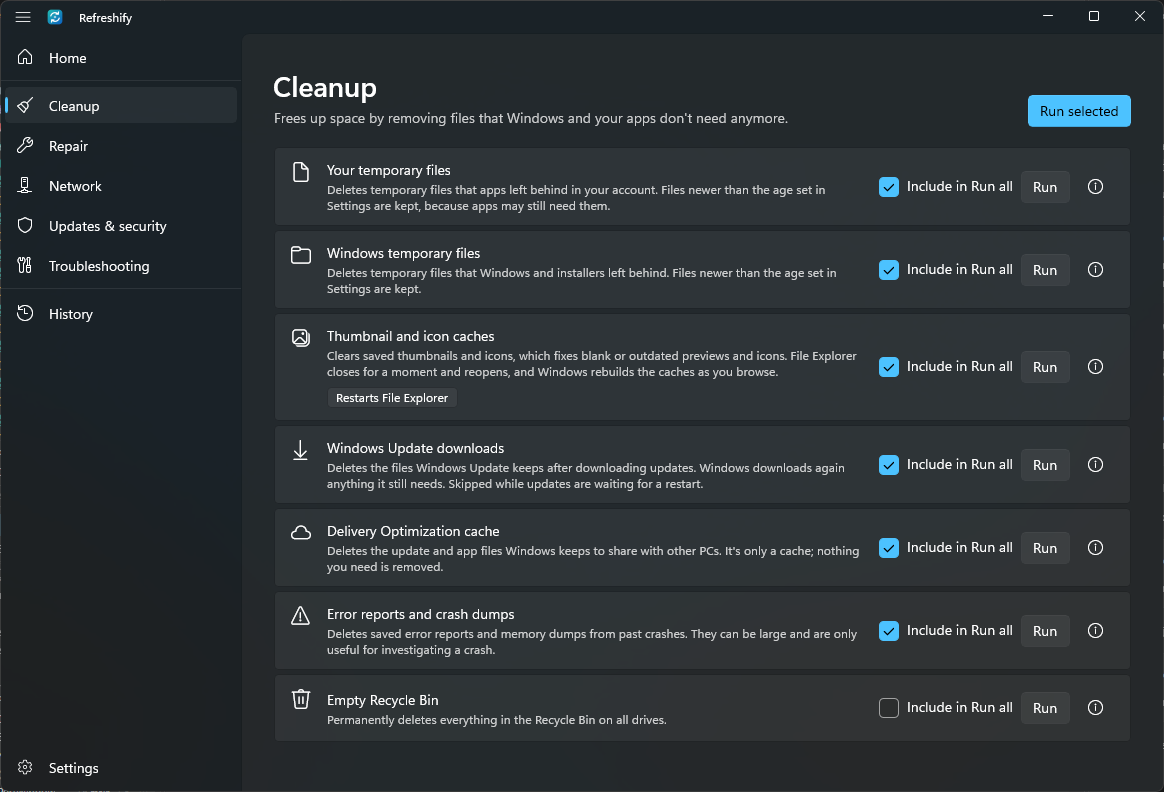
Refreshify runs the tools Windows ships with and reads their results. Cleanups run in Refreshify itself: they skip files in use and never follow junctions or symbolic links.
DISM, SFC, chkdsk, winget, PowerShell cmdlets and the Windows Update Agent API run without windows. Refreshify reads their progress and results and shows them in the app.
Tools that need administrator rights run in an elevated helper, started the first time one runs, so Windows asks once. The helper only runs tools from Refreshify's catalog, over a named pipe only the two of them can use.
The restore point comes first. Cleanup frees space before DISM and Windows Update need it, Repair fixes the component store before updates use it, and DISM always runs before SFC.
Problems are recognized from exit codes, error codes, CBS.log and DISM /English, never from console text, so detection works the same in every Windows language.
Health reads the state of your PC and changes nothing, and Disk space reads folder listings and file sizes. Neither needs administrator approval, and neither sends anything.
Yes. Refreshify is free and open source under the MIT License. It has no ads, accounts or telemetry.
Refreshify only runs maintenance tools that come with Windows, plus winget. It lists what a run will do before it starts and creates a System Restore point first, skipped when one from the last 24 hours exists. A restore point covers system files, settings and programs, not personal files.
It runs on Windows 10 version 1809 or later, x64, but it has only been tested on Windows 11 25H2.
Repair and update tools need administrator rights. Refreshify runs them in an elevated helper that starts the first time one of them runs, so Windows asks once per session.
No. Refreshify collects nothing. The only request it makes itself is the update check, which asks GitHub for the latest release and sends nothing but its version number. The Windows tools it runs, such as Windows Update, Microsoft Defender and winget, connect to Microsoft and app publishers as they do when you run them yourself. See the privacy statement.
The installer isn't code-signed yet. Check that its SHA-256 hash matches the one in the release notes (Get-FileHash in PowerShell), then choose More info and Run anyway.
It looks at the free space on each drive, the health your drives report, battery wear, whether a restart is waiting, how long since the last restart, your virus protection, the last Windows update and whether Windows is activated. Each check says what it found and what to do, and where Refreshify has a tool for it, a button opens that tool. Nothing is changed, and Home shows a line when something needs attention.
Yes. The Disk space page scans your files or a drive and lists the biggest folders and files, largest first, each with its size and its share of the folder. Open a folder to go into it, switch to the 100 largest files, or open any row in File Explorer. Nothing is deleted from this page. Folders Refreshify can't read, such as protected system folders, count as unreadable, and cloud files that are only online aren't counted.
Refreshify checks GitHub for a newer release at most once a day. When one is available, What's new shows only the release's changes, grouped New, Improved and Fixed, with the release date and a link to the full notes, and offers Update now. The first time you start a new version, Refreshify shows what changed in it, once. The automatic check can be turned off.