 Pwrschdlr
Five actions
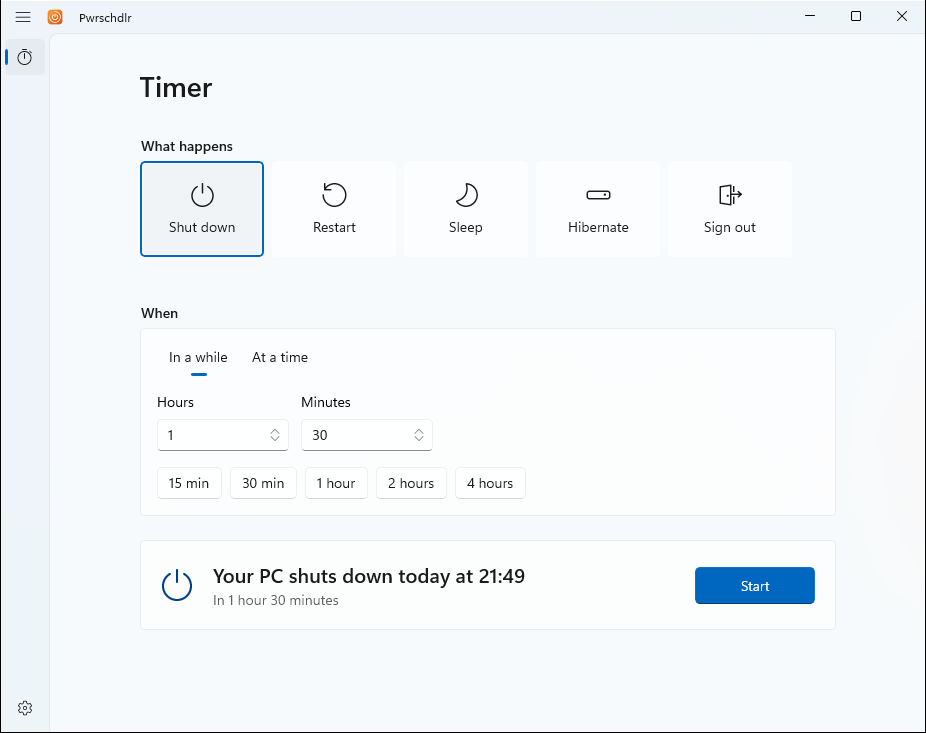
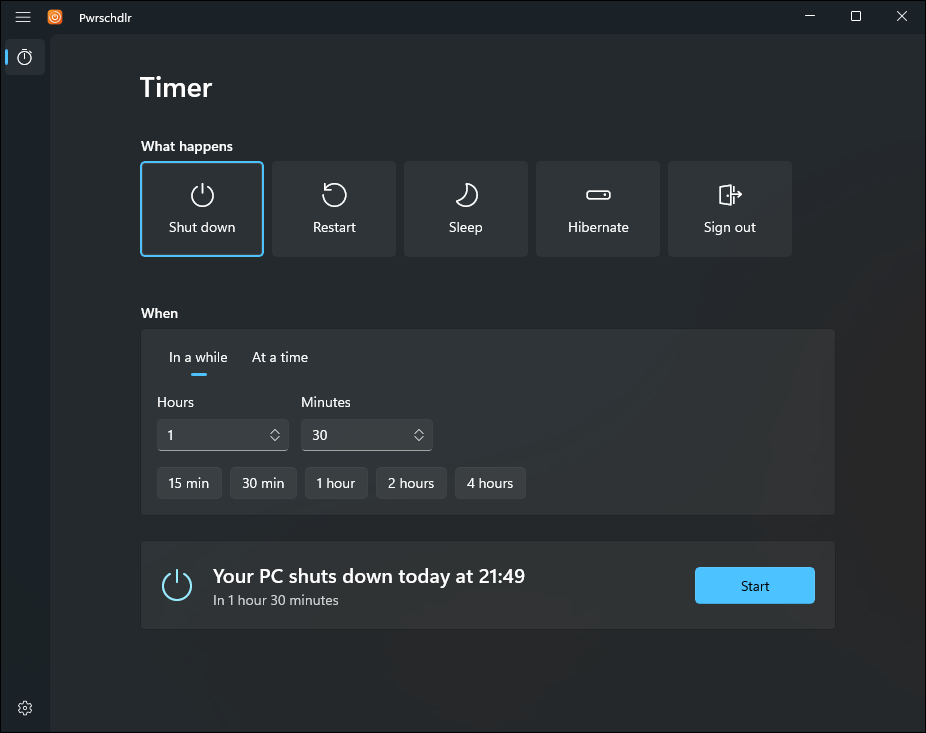
Shut down, restart, sleep, hibernate or sign out. Actions your PC can't do, such as hibernating when hibernation is off, are grayed out with the reason.
Pwrschdlr, a power scheduler without the vowels, shuts down, restarts, sleeps, hibernates or signs out of your PC when a timer runs out, and warns you first.
Free and open source
MIT License. Windows 11, or Windows 10 1809+, x64.
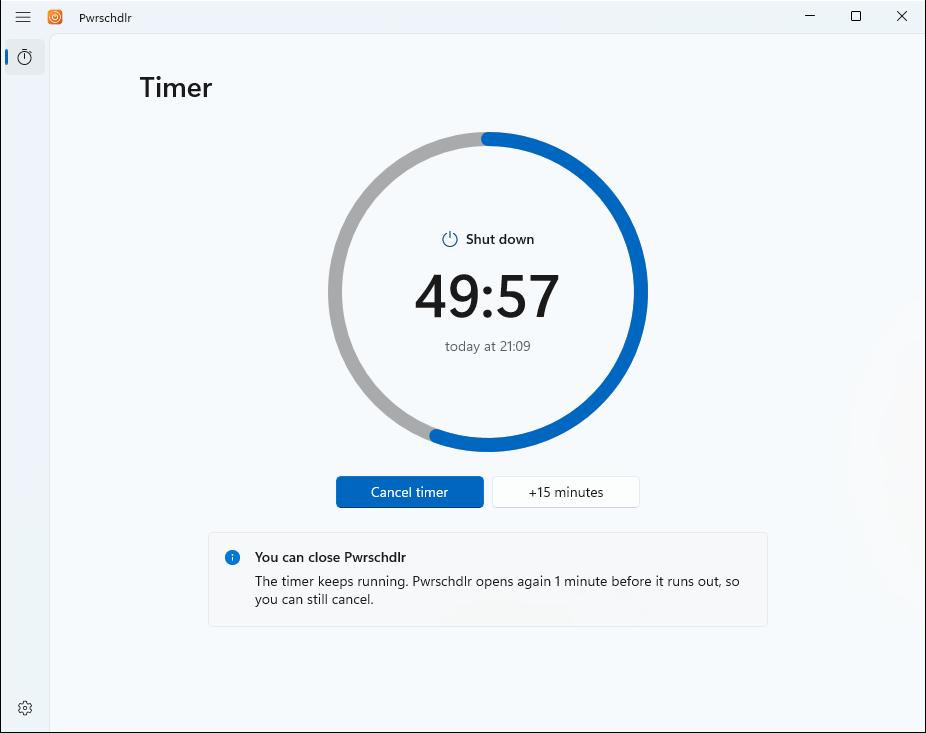
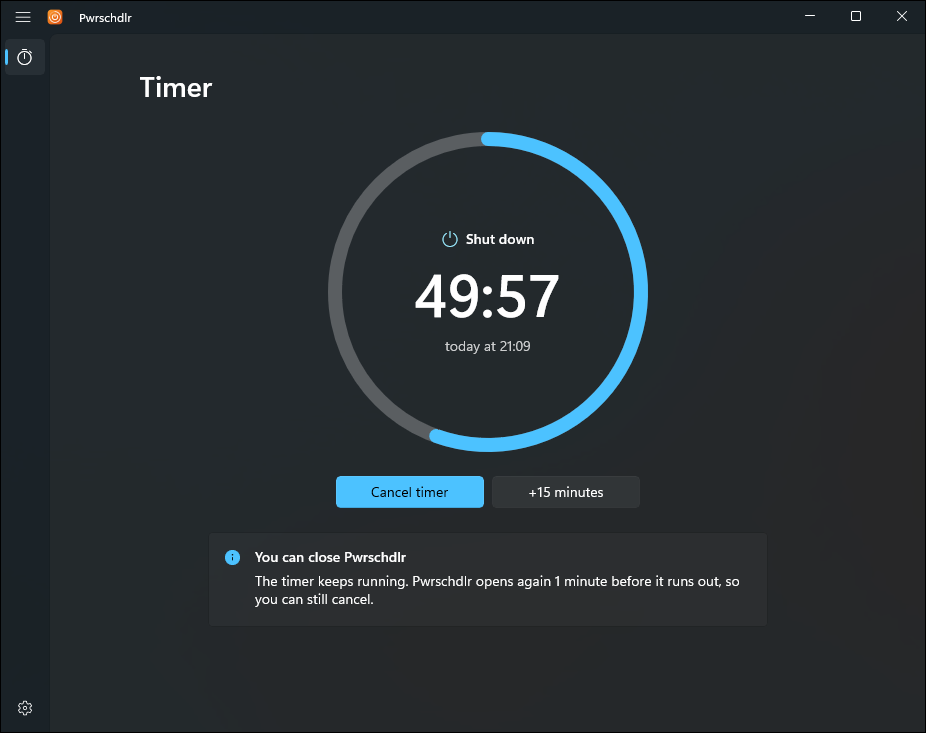
Windows can shut down on a timer with shutdown /s /t 5400, if you remember the flags, do the math in seconds and trust a command you can't see counting down. Pwrschdlr does the same in a window you can see, and lets you change your mind.
Shut down, restart, sleep, hibernate or sign out. Actions your PC can't do, such as hibernating when hibernation is off, are grayed out with the reason.
Set how long to wait, with presets from 15 minutes to 4 hours, or pick a time of day. Daylight saving time is handled.
Instead of a time, wait for your downloads to finish, for an app to close, or for nobody to use the PC. Pwrschdlr watches while its window is open, shows what it is reading, and then runs the timer as usual.
Set a time and the days of the week, such as shut down on weekdays at 23:30. A per-user scheduled task opens Pwrschdlr for the warning before each occurrence, so it works with the window closed.
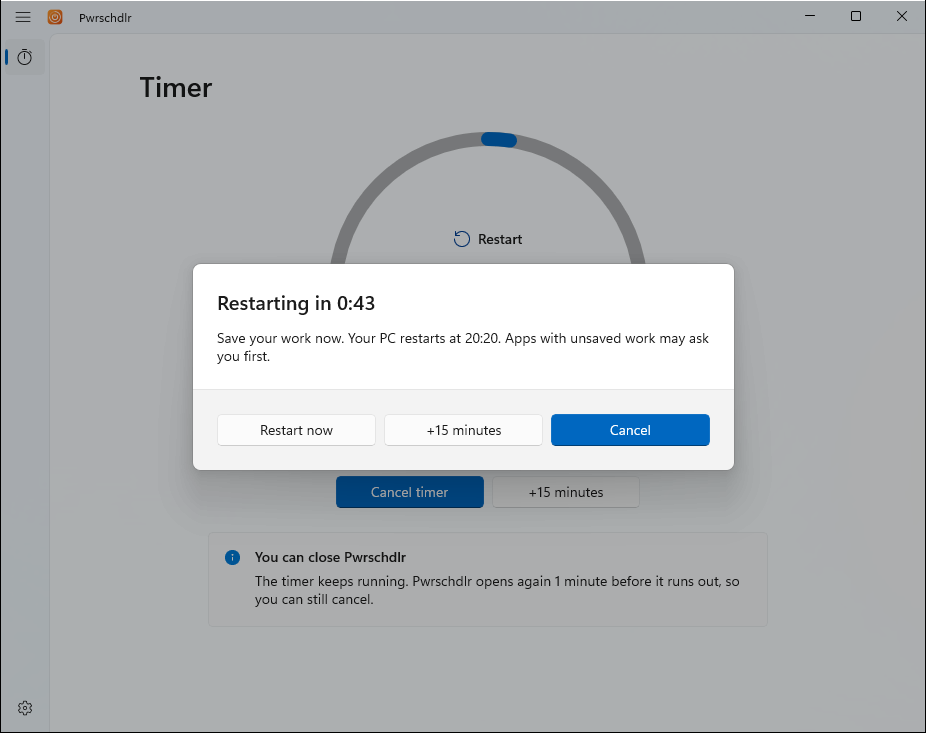
A ring empties as the time runs out, and the taskbar shows the time left. Cancel or add 15 minutes at any time.
The timer keeps running when Pwrschdlr is closed. Nothing runs in the background in the meantime.
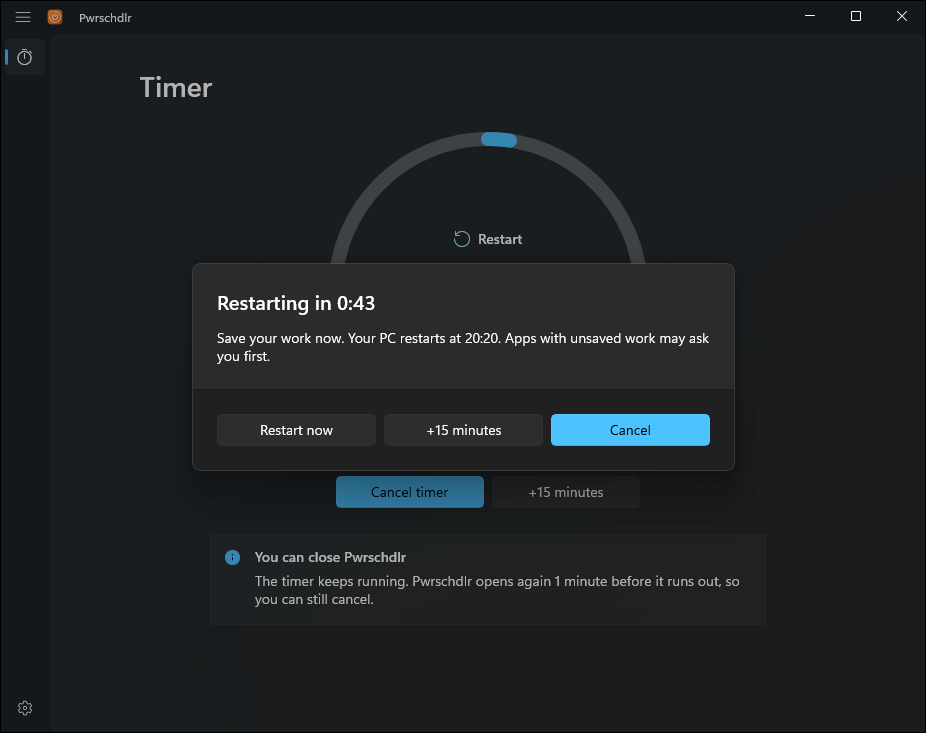
Before the end, Pwrschdlr opens again and counts down in a warning that stays on top, so you can save your work, cancel or postpone.
If your PC was off or asleep when the timer ran out, Pwrschdlr tells you and does nothing, instead of shutting down when you come back.
When a new version is out, Pwrschdlr shows what changed in plain words, grouped New, Improved and Fixed, with a link to the full notes. After it updates, it shows what changed in the version you got.
Pwrschdlr keeps the timer in Windows itself, so closing the app, or a crash, doesn't lose it.
Starting a timer adds a one-time task to Windows Task Scheduler that opens Pwrschdlr when the warning starts, and a repeat adds a weekly task that opens Pwrschdlr before each occurrence. The tasks run as you, without administrator rights, and are removed when the timer ends, you cancel it, or you remove the repeat.
The timer and a saved repeat are stored in your part of the registry. Starting a new timer replaces the old one, and changing the warning moves the task.
When something ends, Pwrschdlr reads the condition while its window is open, once a second, and saves nothing for it. When the condition is met, it starts an ordinary timer.
Shut down, restart, sign out and hibernate use shutdown.exe. Sleep uses the Windows power API, and on Modern Standby PCs, which have no classic sleep, it turns off the display, which is how those PCs go to sleep.
When the warning ends, Pwrschdlr acts only if the end has just passed. A timer that ran out while the PC was off, asleep or signed out is reported instead.
shutdown.exe arguments, the waits for something to end, the repeating schedule and a real round trip through Task Scheduler.Power scheduler. It's the same name without the vowels.
Yes. Pwrschdlr is free and open source under the MIT License. It has no ads, accounts or telemetry.
The timer keeps running. A scheduled task opens Pwrschdlr again 30 seconds, 1, 2 or 5 minutes before the end, and it counts down in a warning that stays on top, so you can still cancel or postpone.
Nothing happens. Pwrschdlr tells you about the missed timer the next time it opens, and never runs it late.
No. Setup installs it for your account only, and the timer's scheduled task runs as you, without administrator rights.
No. Pwrschdlr collects nothing. The only request it makes itself is the update check, which asks GitHub for the latest release and sends nothing but its version number. Its settings and timer stay in your registry. See the privacy statement.
The installer isn't code-signed yet. Check that its SHA-256 hash matches the one in the release notes (Get-FileHash in PowerShell), then choose More info and Run anyway.
Yes. With When something ends, Pwrschdlr waits for your downloads to finish, for an app to close, or for nobody to use the PC, and then runs the timer with its usual warning and cancel. It watches only while its window is open.
No. Pwrschdlr watches for something to end only while its window is open; you can minimize it, but closing it stops the wait. Repeat is different: its scheduled task opens Pwrschdlr for the warning before each occurrence, so it works with the window closed.
Yes. Repeat saves a time and the days of the week, such as shut down on weekdays at 23:30. A repeat that came while your PC was off, asleep or signed out is reported as missed, never run late, and one that comes while a timer or a wait is running is skipped.
Pwrschdlr shows just what changed, grouped New, Improved and Fixed, with the release date and a link to the full notes on GitHub. After an update, it shows what changed in the version you just got.